
OneTrust
Create the Click2Buy vendor
Create a new vendor with the following settings (see the OneTrust documentation on creating a vendor):
| Field | Value |
|---|---|
| Display name | click2buy: exactly this value, in lowercase |
| Privacy policy URL | https://click2buy.com/privacy-policy/ |
| Description | See below |
text
Click2Buy uses your IP address to locate you and show retailers near you.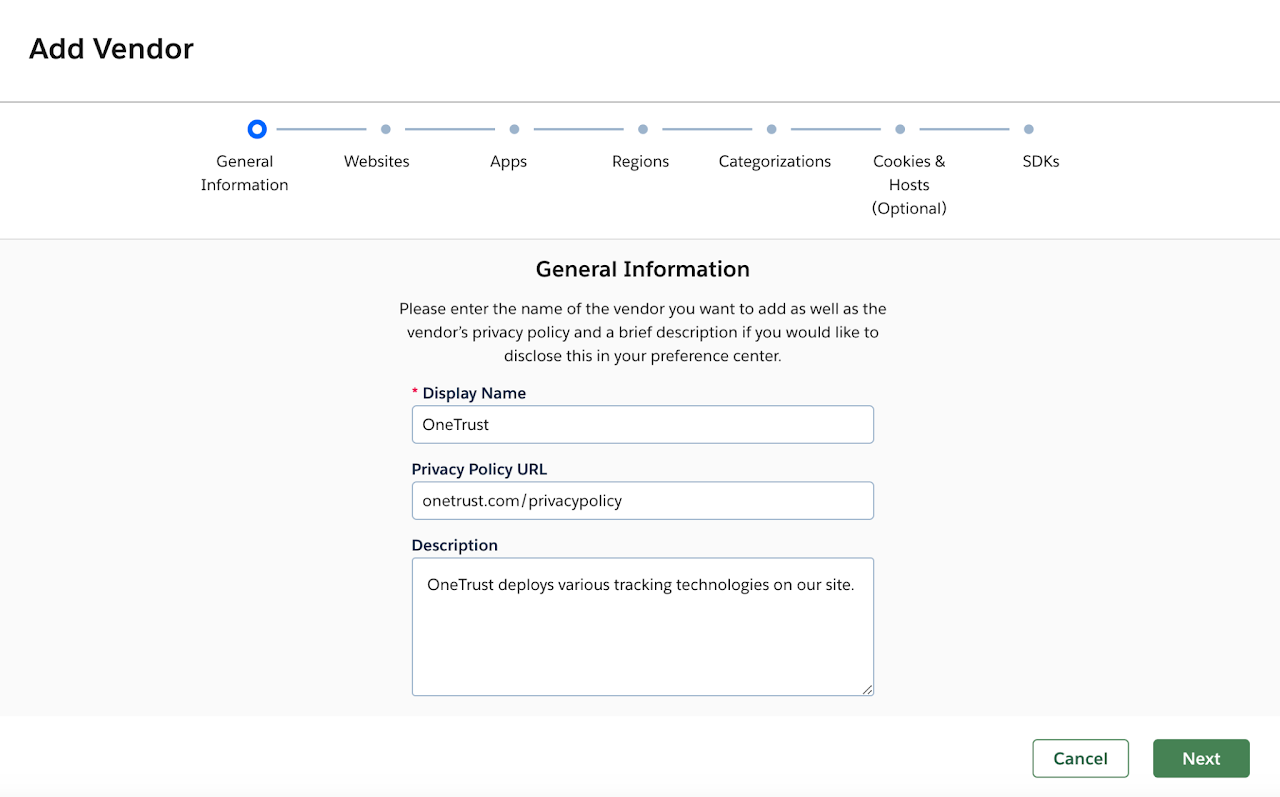
Configure the vendor
Select the websites where our script is installed.
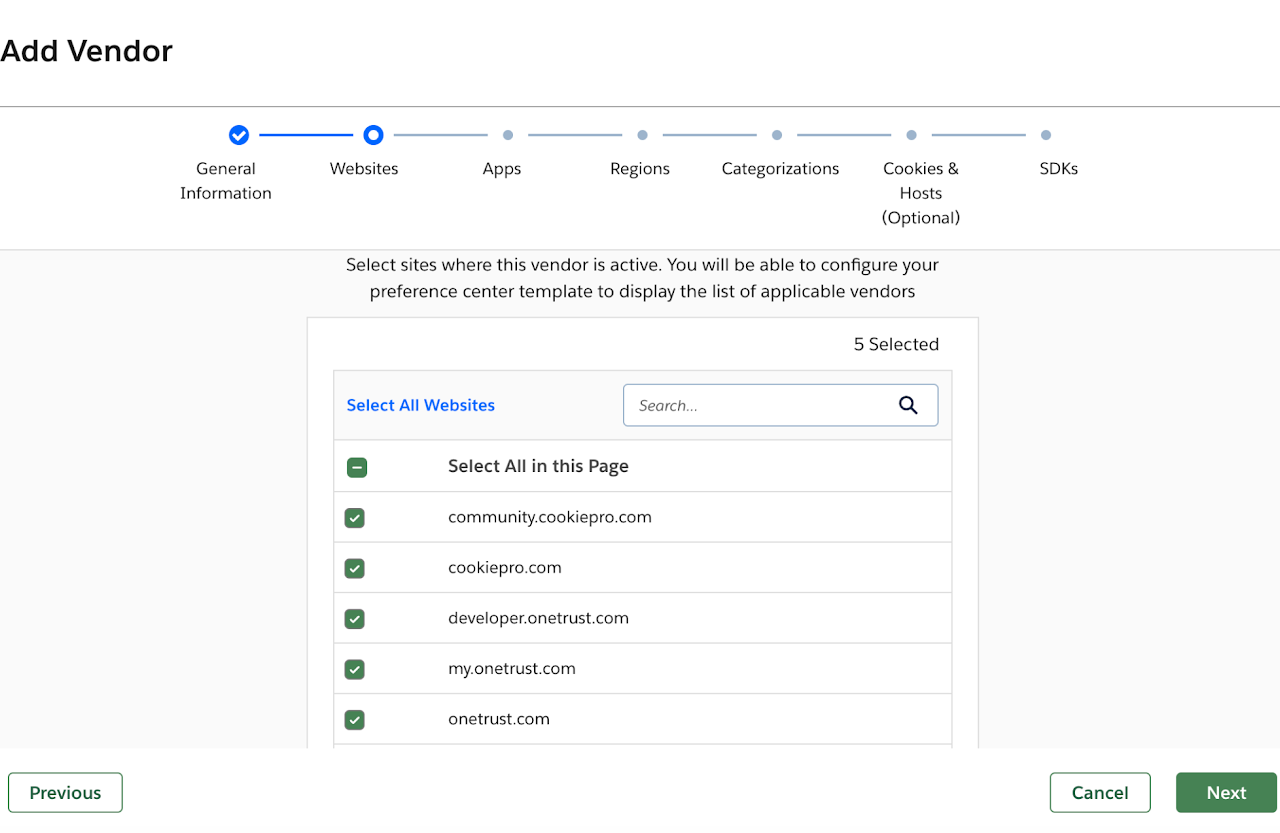
Add Vendor: Websites Choose the category for Click2Buy. We recommend Functional Cookies.
Visitors who refuse this category can still share their location through their browser, or enter an address: accepting it only makes locating them quicker.
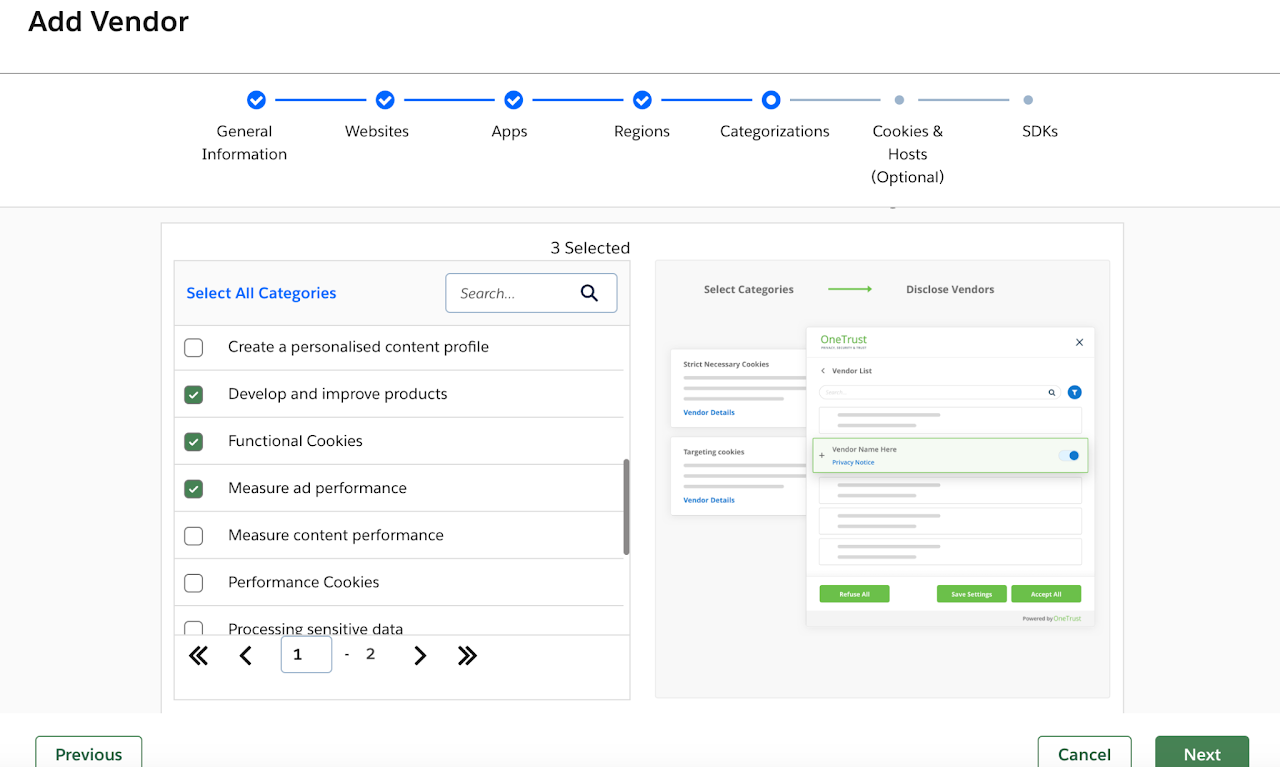
Add Vendor: Categorizations Display the vendor in your preference center.
Publish your changes, then contact your Customer Success Manager to enable the consent feature on your widgets.
Check your configuration
Once your changes are published, run this code in the browser console on your website to check that the Click2Buy vendor is set up correctly:
js
function checkConsentVendors() {
  let oneTrustConsent = false;
  // Check OneTrust
  if (typeof Optanon !== 'undefined' && typeof Optanon.GetDomainData === 'function') {
    console.log("[OneTrust] SDK detected ✅");
    try {
      const groups = Optanon.GetDomainData()?.Groups || [];
      const groupWithClick2Buy = groups.some(group =>
        group?.Hosts?.some(host => host?.DisplayName?.toLowerCase().includes('click2buy'))
      );
      oneTrustConsent = !!groupWithClick2Buy;
      console.log(`[OneTrust] Click2Buy consent group found: ${oneTrustConsent ? "✅ Yes" : "❌ No"}`);
    } catch (error) {
      console.error("[OneTrust] Error checking consent ❌", error);
    }
  } else {
    console.log("[OneTrust] Not found ❌");
  }
  return { onetrust: oneTrustConsent };
}

// Run the check
checkConsentVendors();