
ConsentManager
Create the Click2Buy vendor
Create a new vendor with the following settings:
Field Value Name click2buy: exactly this value, in lowercaseURL https://click2buy.com/privacy-policy/Description Click2Buy uses your IP address to locate you and show retailers near you.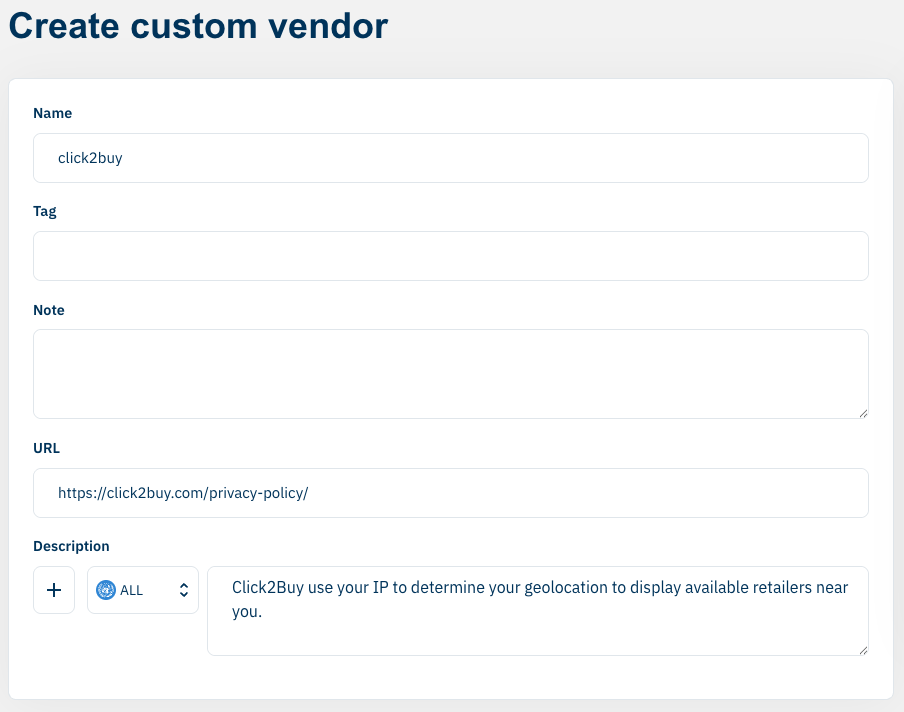
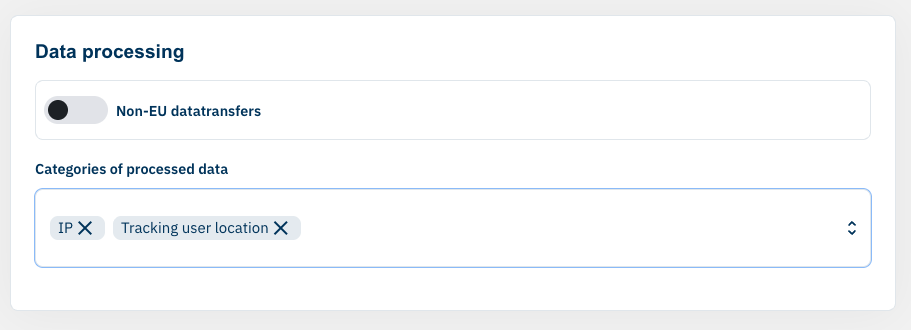
Create custom vendor In Categories of processed data, select IP and Tracking user location, then save.
Categories of processed data Choose the purpose for Click2Buy. We recommend Function.
Visitors who refuse this purpose can still share their location through their browser, or enter an address: accepting it only makes locating them quicker.

The click2buyvendor with the Function purposeAdd the domain of our widget to your
click2buyvendor (use the vendor ID to find it):textwidget.clic2buy.com
Assigned domains
The Click2Buy vendor is now configured. Changes can take up to 30 minutes to appear on your website.
Then contact your Customer Success Manager to enable the consent feature on your widgets.
Check your configuration
Once your changes are published, run this code in the browser console on your website to check that the Click2Buy vendor is set up correctly:
js
function checkConsentVendors() {
  let consentManagerConsent = false;
  // Check ConsentManager
  if (typeof __cmp !== 'undefined' && typeof __cmp === 'function') {
    console.log("[ConsentManager] SDK detected ✅");
    try {
      const cmpData = __cmp('getCMPData');
      const vendor = cmpData?.vendorsList?.find(vendor => vendor.name === 'click2buy');
      consentManagerConsent = !!vendor;
      console.log(`[ConsentManager] Click2Buy vendor found: ${consentManagerConsent ? "✅ Yes" : "❌ No"}`);
    } catch (error) {
      console.error("[ConsentManager] Error checking consent ❌", error);
    }
  } else {
    console.log("[ConsentManager] Not found ❌");
  }
  return { consentManager: consentManagerConsent };
}

// Run the check
checkConsentVendors();