
Didomi
Create the Click2Buy vendor
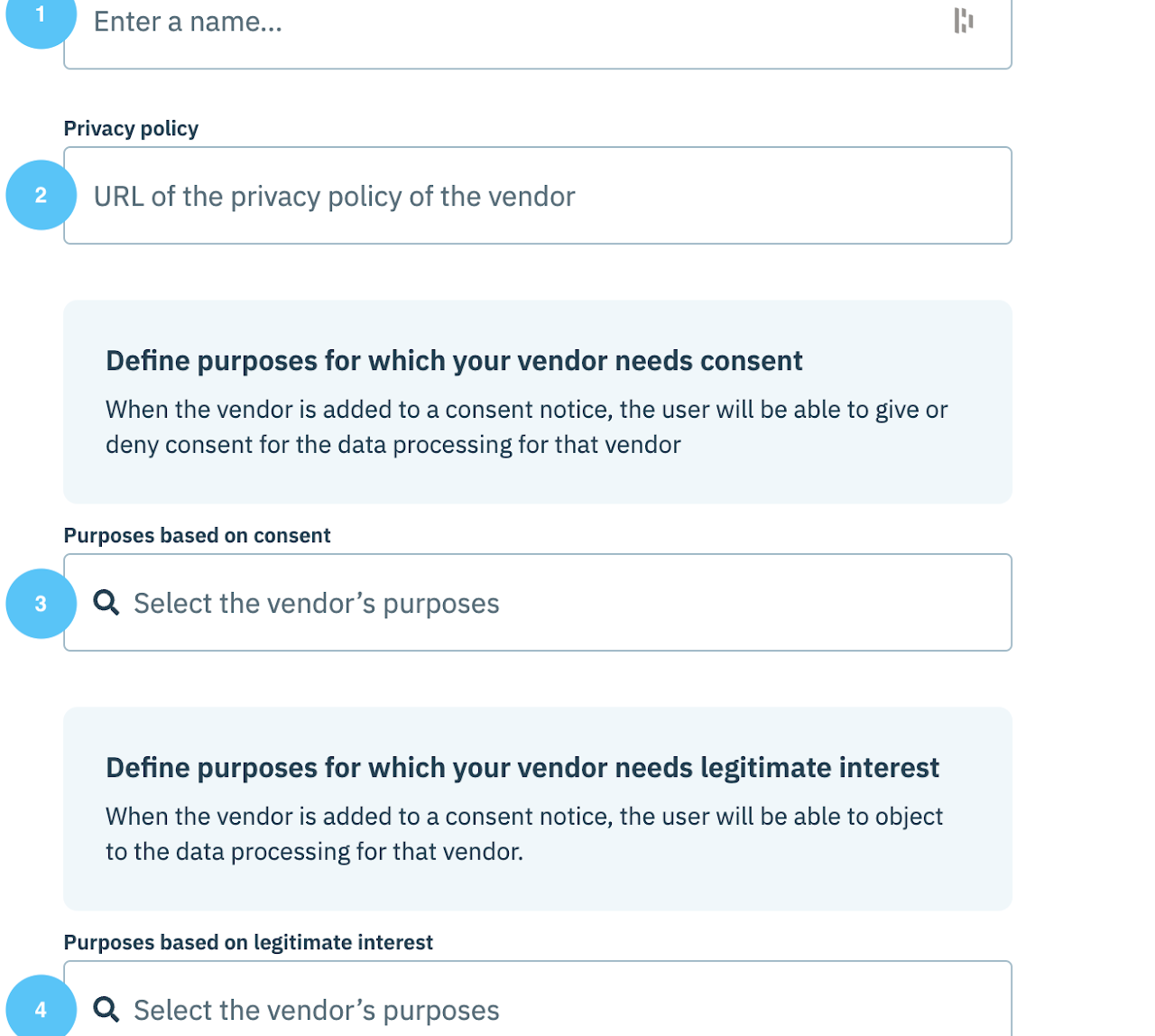
Create a new vendor with the following settings (see the Didomi documentation on creating a vendor):
| Field | Value |
|---|---|
| Name | click2buy: exactly this value, in lowercase |
| Privacy policy | https://click2buy.com/privacy-policy/ |
| Purposes based on consent | Add 4 - Special features → Special Feature 1 - Use precise geolocation data, legal basis: Consent (SDK ID: geolocation_data) |
| Purposes based on legitimate interest | Leave empty |
Publish your changes, then contact your Customer Success Manager to enable the consent feature on your widgets.
Check your configuration
Once your changes are published, run this code in the browser console on your website to check that the Click2Buy vendor is set up correctly:
js
function checkConsentVendors() {
  let didomiConsent = false;
  // Check Didomi
  if (window.Didomi) {
    console.log("[Didomi] SDK detected ✅");
    const vendors = window?.Didomi?.getCurrentUserStatus()?.vendors;
    const key = Object.keys(vendors).find(key => key.includes('click2buy'));
    didomiConsent = key ? vendors[key].enabled === true : false;
    console.log(`[Didomi] Click2Buy consent: ${didomiConsent ? "✅ Granted" : "❌ Denied"}`);
  } else {
    console.log("[Didomi] Not found ❌");
  }
  return { didomi: didomiConsent };
}

// Run the check
checkConsentVendors();